Quick Answer
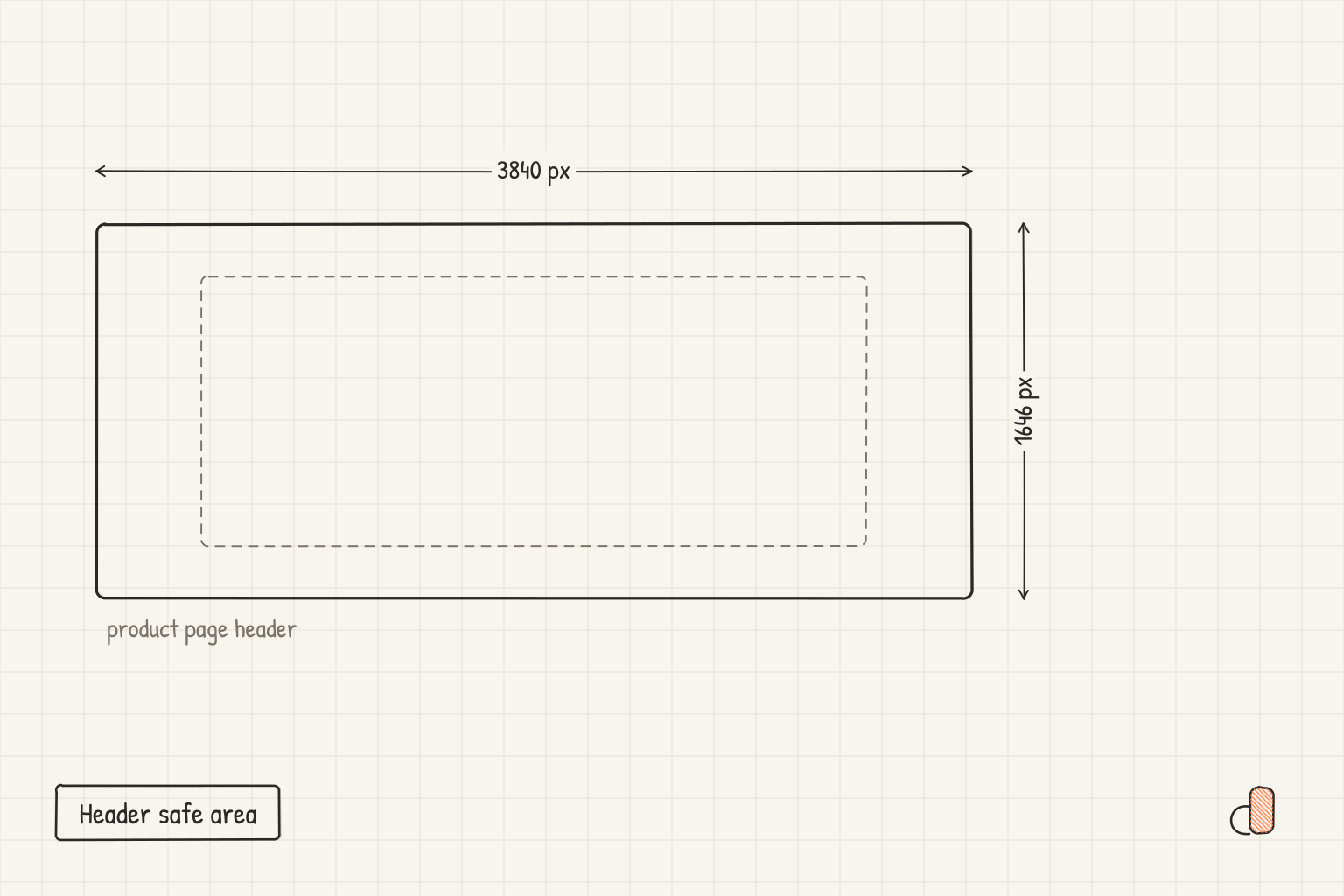
The App Store product page header is a 21:9 image at exactly 3840 × 1646 pixels, and the search results asset is a 3:2 image from 1920 × 1280 up to 3840 × 2560 pixels, both as JPEG or PNG with no alpha channel. A third option, a 16:9 PNG at 5244 × 2950 pixels, can serve both placements from one file. Apple publishes no safe area in text, but its design templates mark an Art Safe Area layer: 1646 × 661 in the middle of the header and 2168 × 1030 in the middle of the search asset. Keep anything people must read or recognise inside that box. Both assets are optional, and either can be a video of 5 to 30 seconds instead of an image.
The sizes and safe areas in one table
Apple's creative assets specifications list the canvas sizes and formats. The safe area numbers come from the "Art Safe Area" layer in the templates Apple links from its asset best practices page, not from any written spec, so treat them as Apple's design intent rather than a rule App Review measures.
| Asset | Canvas | Ratio | Art Safe Area in the template (x, y, size) | Safe area share of the canvas | Formats |
|---|---|---|---|---|---|
| Product page header | 3840 × 1646 | 21:9 | 1097, 493, 1646 × 661 | 43% of the width, 40% of the height | JPEG or PNG |
| Search results | 1920 × 1280 to 3840 × 2560 | 3:2 | 836, 765, 2168 × 1030 (on the 3840 × 2560 template) | 56% of the width, 40% of the height | JPEG or PNG |
| One asset for both | 5244 × 2950 | 16:9 | 1921, 660, 1402 × 962 | 27% of the width, 33% of the height | PNG only |
Do the arithmetic and two things stand out. The header and search safe areas sit dead centre in both directions, and the header's covers roughly a sixth of the canvas, so most of the header is margin. The 16:9 box is centred side to side but sits high: a centred box would start at y 994, and Apple's starts at y 660.
The specifications page lists the 5244 × 2950 PNG under both placements without naming it; Apple's guide to managing App Store assets calls it a universal creative asset: "If you upload a universal creative asset, you can use it for both your product page header and search results placement." The option to reuse the header in search results, "Use header asset in search results", is only offered for that universal asset.
Video uses the same header and search canvases, at 30 or 60 fps, 5 to 30 seconds, as .mov, .m4v or .mp4. It loops and starts muted in both places, and only the product page lets people unmute it. The video table has no 16:9 row, so the one-file option is for images only.
Every image in that table follows one line on the specifications page: "Images can't include alpha channels or transparencies."
What goes inside the safe area, and what goes outside
The best practices page puts it in one sentence: "Design key elements with a safe area in mind to accommodate different devices and orientations. Be sure your focal point artwork is within the center of your composition to prevent any unwanted clipping." For the header it adds "Focus on a single, clear idea."
In practice that splits the canvas into two jobs. Inside the safe area goes the one idea: your product, a character, a hero screen, a short line of text if you use one, anything a visitor needs to read or recognise. The margins carry colour, texture, pattern, light and decorative shapes, things that still look right when a slice of them is gone.
For search, Apple's advice is "State the obvious" and "Showcase the firsthand experience", so that asset leans toward your interface or gameplay, with the important part again in the middle. Our post on what shows in App Store search results covers when the asset appears and what shows instead when you leave it out.
The content rules on the best practices page apply to both assets. Don't include specific pricing, discounts, website URLs or copyright symbols, don't name awards you have not received, don't show other platforms or marketplaces, and don't use Apple's own recognitions such as Editor's Choice or App of the Day. Everything must meet a 4+ age rating, and while you may show content beyond the app in use, "it must still relate to its general functionality." The longer version of that list, with examples, is in what not to put on App Store screenshots.
To check a file before upload, place Apple's template over your art and confirm the focal point sits inside the Art Safe Area layer; if something important touches its edge, move or scale it inward. App Store Connect also lets you view your assets on iPhone and iPad, across orientations and languages.
How much of the header an iPhone shows
The safe area is the region meant to survive every device and orientation. A single iPhone in portrait shows much more than that.
appdesigns' Store preview follows Apple's own iPhone render on the asset best practices page. In that render the header fills the top of the product page under the status bar and the back and share buttons, about 254 points tall on a phone 402 points wide. At 21:9, an image 254 points tall would be about 593 points wide, and 402 of those 593 points is about 68%. So in that render the iPhone shows the header's full height and roughly its middle two thirds, losing about a sixth on each side.
That is our reading of Apple's picture, not a number Apple publishes, and other devices and orientations crop differently. The safe area's 43% of the width sits well inside the 68% an iPhone shows, so art designed to the box reads on a phone with room to spare.
Making header and search art free in appdesigns
appdesigns has both canvases as presets: Product page header at 3840 × 1646 and Search result at 3840 × 2560, Apple's largest search size. Pick them from the project title's menu or the size chip's Stores tab. The project that holds your screenshots holds these too, which our App Store listing assets checklist walks through.
What the editor does on these canvases:
- Safe area toggle: the screen bar's Safe area button shades everything outside the template's Art Safe Area. It is off by default, and the shading appears only on the canvas, never in an export.
- The phone fits the box: moving a screenshot design onto the header shrinks the device so one at its default size sits inside the safe area, and grows it back if you move the design off again.
- Dressing: a header with nothing of its own gets a gradient and five or six 3D pieces scattered in the margins and kept out of the safe area, with no text. Move the design off the header and the dressing comes off with it, except any piece you moved, resized or recoloured.
- Store preview: beside the canvas, an iPhone page shows the header on the product page and the search asset in a search result, in Light and Dark.
- Check: flags text that runs past the safe area, plus prices, discounts, URLs, the copyright sign, Apple's recognitions, unverifiable awards and other stores, in text or as library pieces. Click an item to select its layer.
It cannot make the 5244 × 2950 asset, which is past its 4,096 pixel limit on a side. It does make video: turn on the screen bar's Motion toggle and either asset exports as a seamless MP4 loop of 5 to 30 seconds.
The rest is the same as the App Store screenshot generator: free, no account needed to create or export, no watermark, unlimited exports, rendered in your browser. Stills export as PNG files, and a design with an opaque background exports with no alpha channel. If you turn on the Background panel's Transparent toggle on one of these canvases, the panel says App Store Connect refuses transparent images, so leave it off.
To try two headers against each other, Apple lets you test these visuals with product page optimization.
Frequently Asked Questions
Is the product page header required?
No. Apple's App Store Connect help says creative assets are optional and separate from your app's screenshots, app previews and other promotional artwork. The same goes for the search results asset.
Can I use one image for the header and the search results?
Only the 16:9 PNG at 5244 × 2950 pixels. Apple calls it a universal creative asset, and the "Use header asset in search results" option is only available for it. A 3840 × 1646 header cannot also be used as the 3:2 search asset.
What happens to art outside the safe area?
It may be cropped on some devices and orientations. Apple asks you to keep key elements and the focal point in the centre for that reason.
Can the header carry text?
Yes. Apple's rules for creative assets ban specific prices, discounts, URLs, copyright symbols, unearned awards, Apple's recognitions and other platforms, not text itself. Keep any text short, inside the safe area, and about the single idea the header shows.
Does the header replace my screenshots?
No. Every submission still needs at least one screenshot, and the header sits alongside them on the product page. Search is where the two meet: Apple's best practices page says that without a search asset, your In-App Events, app previews and screenshots appear in its place.