Quick Answer
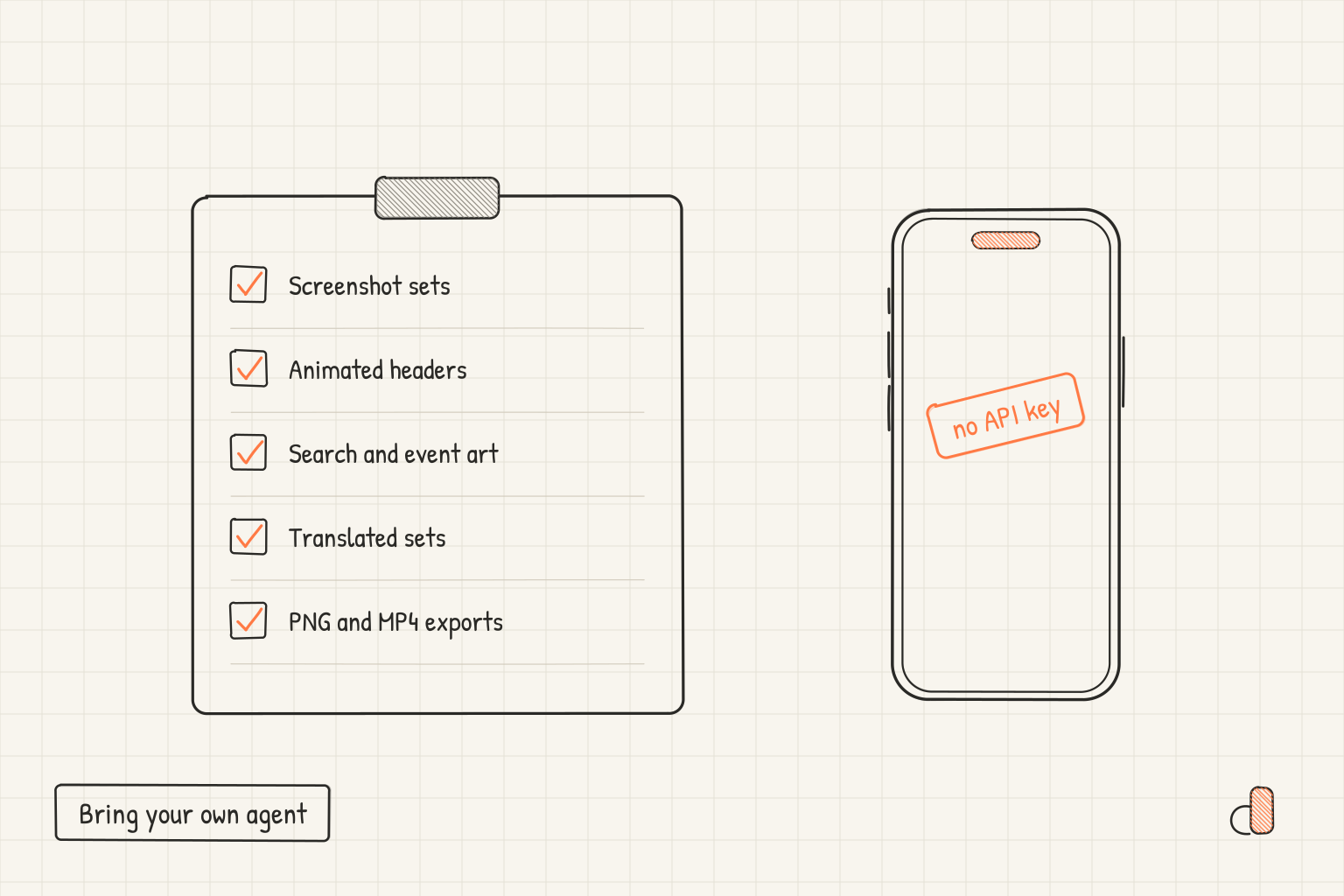
appdesigns no longer runs its own AI model to design your App Store listing. In October 2026 we retired AI Mode, the Pro feature that wrote headlines and picked colours on a hosted model we paid for every time it ran, and handed the job to the agent you already use: Claude Code, Codex, Cursor or ChatGPT. Through our free MCP server at https://appdesigns.click/api/mcp, your agent makes screenshot sets from your real app, animated App Store headers, search and event art, launch images, translated sets and the final PNG and MP4 files. As of October 2026 the server has 18 tools, needs no API key and needs no account to make anything. Your agent does the thinking on your plan. appdesigns does the frames, the drawing and the export.
Why we stopped paying for the thinking
AI Mode turned a few uploaded screenshots into a finished set: headlines, a palette and a headline font. Every call was ours to pay for, so it lived behind Pro with an allowance of 20 AI actions a day and a kill switch. A lot of the code around it was there to meter spend.
It also saw very little. A model behind an upload button sees the screenshots and the few settings you give it. Your coding agent sits in your repository. It can read your code to find the screens worth showing and your theme to find your colours, boot the simulator, add believable demo data once you agree, and look at the result before it hands it over.
And if you build with an agent, you have already chosen a model and you pay for it. A second model inside appdesigns meant paying twice for the same kind of work.
So we split the job. Your agent decides which screens to show, what each caption says and what the header looks like. appdesigns does what an agent cannot do well on its own: real device frames, store sizes and safe areas, previews drawn the way the editor draws, final files made by the editor itself, and a project you can open and change by hand.
What your agent can do now
| Job | Tools | Account |
|---|---|---|
| Make a screenshot set from your app's code | get_workflow, create_project, finish_project | Not needed |
| Change captions, colours or the device without recapturing | update_project | Not needed |
| Make a set from screenshots attached in ChatGPT | make_screenshot_set | Not needed |
| Draw listing art and launch images | get_design_guide, create_design, update_design | Not needed |
| Find shapes, emoji and symbols in our library | search_library | Not needed |
| Edit, translate, reshoot or export what it made, before you save it | get_asset, edit_asset, translate_asset, replace_screenshots, export_asset, get_export | Not needed |
| Save a set straight into your account | save_to_account | Free account |
| Read, change, translate or export projects you saved | list_projects and the tools above | Free account |
Screenshot sets from your real app
In your app's folder, say "Make App Store screenshots for this app with appdesigns." The agent reads the workflow, plans four or five screens and checks in with you once: the screens, the demo data, any code it would change and a caption for each. Then it captures every screen at store size with a clean status bar.
The upload never goes through the chat. create_project returns an upload command that sends each file straight to storage through a signed link. finish_project checks every file and normally answers with a preview of each screen as it will open, so the agent catches a caption that wraps badly before you see it. update_project then changes captions, the background, the frame colour or the device without a new upload.
Since October 17, 2026 the server fits the set to the captures, so a landscape game gets a landscape App Store set. It makes iPhone Duo sets for both displays too: the inner display at 2007 × 2853 and the outer display at 1398 × 2034, either way up. When the set is ready, the agent opens it in your browser itself. Our step-by-step MCP guide shows how the agent captures on each platform.
Listing art it draws itself
Ask for a product page header and the agent calls get_design_guide, then create_design with up to four directions to pick from. It draws the art as SVG and adds layers: your app icon from your App Store link, text, pieces from our library, and real device frames holding your screenshots. Layers move and the design loops, so the header, the search result and the In-App Event card and page come out as animated assets that export as MP4. It draws stills too: an X or LinkedIn post, an Instagram image, a Product Hunt gallery image or a Google Play feature graphic.
Each answer normally includes a preview frame, plus warnings for art an iPhone crops off, text under the status bar, text outside the safe area, weak text contrast, and anything Apple's asset best practices ask you to leave out, such as prices or awards. update_design changes one layer by its id, so a fix is a few lines, not a redraw.
Edits, translations and exports from the same chat
The last mile happens in the chat too. Until you save it, the agent can keep working on anything it made in the conversation without signing in: change a layer, swap in a new capture or copy the set into another language. For a translation, your agent writes every caption and translate_asset lays it out the way the editor's Translate set does, wrapping a long line and moving the captions below it down. One call per language, and nothing to pay us.
Exports come from your own browser, not our server. export_asset gives the agent a link that opens the set in the appdesigns editor, which renders every screen through its own Export: a PNG per screen and an MP4 for anything that loops. get_export then gives the agent a command that downloads the files, and says where they go: fastlane deliver or supply for screenshots, App Store Connect for listing art.
Sign a coding agent in once and it can also work on projects you saved. Each edit is checked against the version the agent read, and an editor you have open loads the agent's version instead of saving over it. You can remove an agent at any time under Connected agents in the account menu.
One conversation, one listing
When a set is done, the agent offers what is left, best first: an animated header, an iPhone Duo set, search result art, iPad and Google Play screenshots, event art and a launch image. Everything you save joins the same project, so your screenshots, Duo set and header sit side by side in your library.
To start, paste the prompt from the MCP server page into your agent, or press Use MCP server on the editor's empty canvas and copy it from there.
What it costs
The MCP server is free and needs no API key. Your agent's usage counts against your own plan, like any other task, and we add nothing on top.
Pro, at $15 a month or $144 a year, is for extras in the editor: caption ideas and translated sets made with our model, which share 20 AI actions a day, custom fonts, unlimited uploads and exporting the motion effects pack (snow, confetti, sparkles and bokeh). The agent path needs no Pro, with one exception: if your agent adds motion effects, a free account's export leaves them out and says so.
Frequently Asked Questions
Does appdesigns still use AI anywhere?
The MCP server runs no model. It only draws pictures: previews of your sets and the art your agent hands it. Two Pro helpers in the editor, caption ideas and translated sets, still call one. Through the MCP server the same two jobs need no Pro, because your agent writes the captions and does the translating.
Which agents work with it?
Any agent that connects to remote MCP servers. Claude Code, Codex, Cursor, VS Code with Copilot and Gemini CLI have setup lines on the MCP server page. Making screenshots from your code needs an agent that can run commands. ChatGPT can't, so it uses the appdesigns plugin instead: attach your raw screenshots and it makes the set in one step.
Do I need an account?
Not to make, preview, edit, translate or export what your agent makes in a conversation. A free account saves a set, and lets a coding agent read and change the projects you saved. ChatGPT's plugin has no sign-in yet, so there you save the set from the link it gives you.
What happens to my screenshots?
A coding agent's upload command sends them straight to private storage through signed links, not through the chat. In ChatGPT, appdesigns downloads the screenshots you attached and stores them privately. Saving a set copies them into your own project. A set nobody saves expires 72 hours after your agent starts it, and its files are deleted soon after.
Can I still edit what the agent made?
Yes. Everything opens as an ordinary appdesigns project, with every caption, layer and move editable by hand. Nothing the agent made is locked.
Does it upload to App Store Connect?
No. It gives your agent the exact files and says where each one goes. You do the upload, or, for screenshots, your agent can do it with your own fastlane setup.