Quick Answer
Product page optimization is Apple's built in A/B test for App Store product pages, configured in App Store Connect, not in your app's code. One test holds up to three treatments measured against your original page and runs for 90 days or until you stop it manually. Treatments are shown to randomly selected people on iOS 15 and iPadOS 15 or later, each person seeing the same treatment throughout, and Apple's product page optimization page says you cannot change a test once it has started. Results reach App Analytics once five first-time downloads are attributed to the test, and Apple advises waiting for 90% confidence before applying a treatment.
What a treatment can change
Apple describes a test as comparing "different app icons, screenshots, and app previews". The help page on configuring treatments is more concrete: each treatment starts as a copy of your original product page, you edit the app icon, screenshots and previews, and anything you leave alone shows the original metadata for that item. Treatments are named Treatment A, Treatment B and Treatment C by default, and those names are visible only to you.
The App Analytics help page describes the same feature as testing "screenshots, app previews, descriptions, and app icons". The two pages disagree about the description, and the App Store Connect steps Apple documents cover an App Icon tab plus per device screenshot and preview tabs, with no description field. Plan your test around icons, screenshots and previews.
Icons carry the strictest condition. Every variant has to be part of the app binary for the version already on the App Store, built with Xcode 13 or later using an SDK that supports alternate icons in asset catalogs, and each icon has to be 1024 × 1024 pixels. Screenshots and previews are looser: Apple says test metadata can be submitted without submitting a new version, and that reordering screenshots or previews already on the App Store needs no resubmission.
Requirements and limits before you start
Apple splits these rules across the overview of product page optimization and the page on creating a test.
| Requirement or limit | What Apple's pages say |
|---|---|
| App status | Ready for Distribution, or Pre-Order Ready for Distribution, and live on the App Store |
| Role needed | Account Holder, Admin, App Manager or Marketing |
| Treatments per test | Up to three |
| Test length | 90 days, or until you manually stop it in that time |
| Changes after starting | None: a started test cannot be changed |
| Audience | People on the App Store in iOS 15 and iPadOS 15, or later |
| Localizations | Every language your app supports, or just the ones you select |
| Not supported | Custom product pages, and product pages for Apple Watch or iMessage |
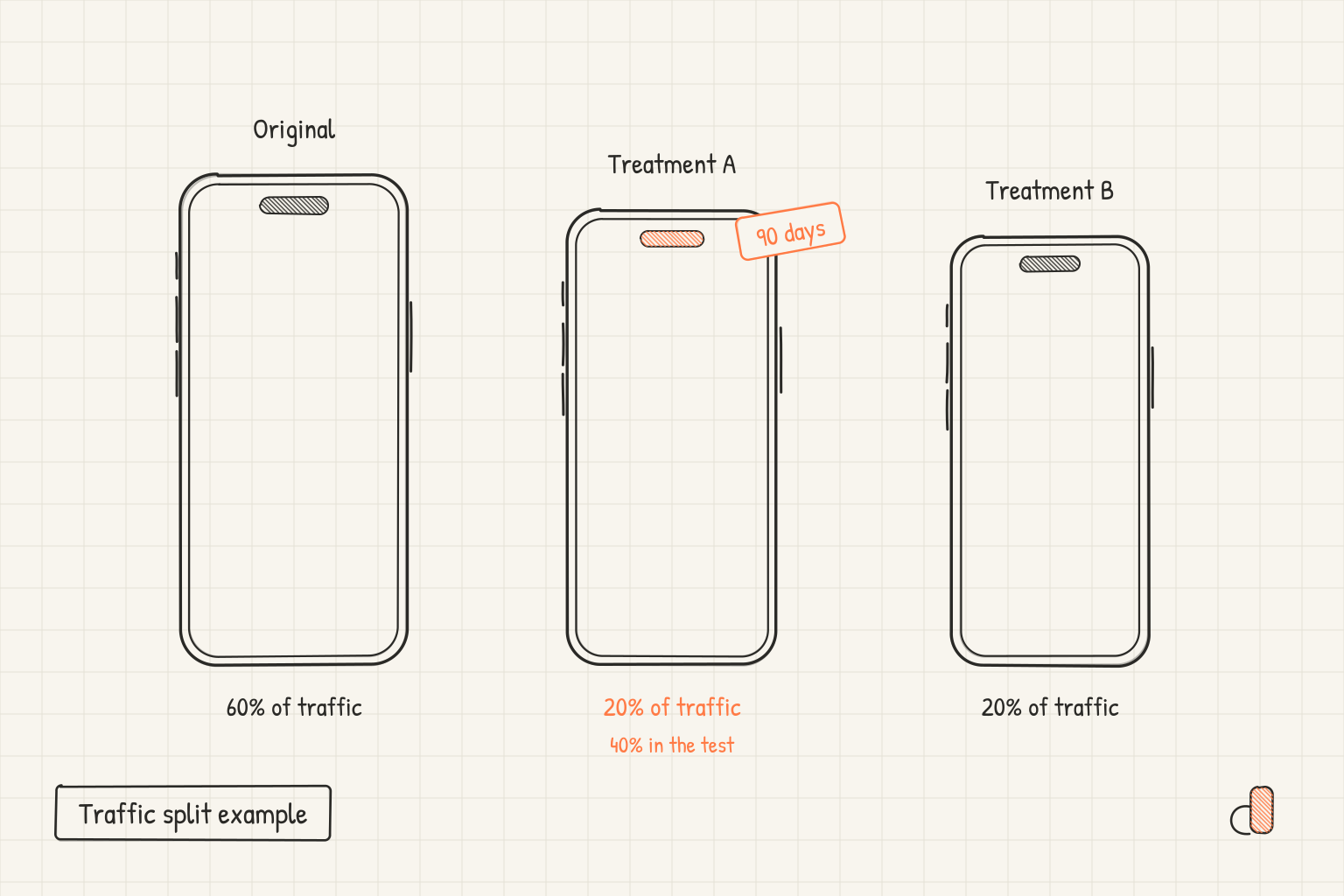
Traffic proportion is the setting people get wrong. It is the share of visitors shown a treatment instead of your original page, and that share is divided between the treatments. Apple's example is 40% of traffic with two treatments: each gets 20% and the original keeps 60%. A second example allocates 30% across three treatments, leaving each treatment 10%. That division is why a three treatment test at a cautious allocation starves every arm at once.
An optional estimate step runs before you commit: pick a desired improvement in conversion rate, and App Store Connect uses your daily impressions and new downloads to estimate the duration and the impressions needed for at least 90% confidence. Apple says it is a guide that does not affect the test, and that if it comes back longer than 90 days you may want fewer treatments or a larger allocation.
Design treatments you can read afterwards
Apple's instruction is to "consider how many elements you change in a treatment so you can more easily determine which one led to a particular result", and to expect more treatments to take longer. So change one element per treatment, and start with a single treatment at the largest allocation you can give up. Apple's metric definitions give the reason to make that change bold: significance arrives in fewer weeks at higher improvement values, such as 30%, than at lower ones, such as 5%.
Screenshots are per device size, so a size you do not edit falls back to your original screenshots, and a treatment that replaces only the 6.9 inch set differs for some visitors and not others. Upload the treatment set for every device size you support. Apple also warns that releasing a new app version mid test may affect results if it contains assets being tested, so hold releases until the test ends.
Check each file before uploading by reading its pixel dimensions in whatever exported it and matching them against the set Apple's screenshot specifications list for that class: the 6.9 inch iPhone class accepts 1320 × 2868, 1290 × 2796 and 1260 × 2736 in portrait, and the 6.9 inch size reference lays out the same numbers. If a file is off, export it again from the source at a listed size instead of scaling what you have.
Apple's asset best practices page notes that creative assets appear across the App Store in iOS 27 and iPadOS 27 and later, and that you can use product page optimization to test alternative header visuals, so a test can cover the product page header as well as the screenshot set.
Read the results in App Analytics
Open the app, click the Analytics tab, then Product Pages under Acquisition in the sidebar. Results appear only after at least five first-time downloads are associated with the test, then update daily. Each variant is labelled Collecting Data, Performing Better, Performing Worse or Likely to be Inconclusive, and Apple applies the better or worse labels only at 90% confidence or above. The results table lists the variant name, unique impressions (unique devices that viewed it), conversion rate, improvement against your baseline, and that confidence figure. Apple states the analysis uses Bayesian reasoning and reports a 90% credible interval.
Wait for a 90% label before acting. When you apply a treatment, the rules are firm: one treatment per test, the action cannot be undone, only the app previews and screenshots are applied, and an icon has to be set as the default in your next app version. Applying a treatment while the test runs stops it, and a stopped test cannot be restarted, so you would create a new test with the same treatments.
Building each treatment free in appdesigns
A treatment depends on producing the same screenshot set twice with one deliberate difference, which is what appdesigns is for. It is free, runs in your browser, needs no account to create or export, adds no watermark, and places no cap on exports. Canvas presets cover the sizes App Store Connect accepts, including all three 6.9 inch iPhone sizes, 1206 × 2622 and 1179 × 2556 for 6.3 inch, and 2048 × 2732 for iPad.
Build your original set as a multi screen project in the App Store screenshot generator, then duplicate it and change one thing: the headline text on the first screen, the background, the device tilt, or the frame, choosing an iPhone frame, the brand neutral Uniframe, or no frame. Export both sets as PNG files at the same sizes. appdesigns does not check files against store rules and does not upload to App Store Connect, so you add each treatment by hand on the Product Page Optimization screen.
Frequently Asked Questions
How long does a product page optimization test run?
A test runs for 90 days, or until you stop it manually within that window. Apple's guidance is not to end a test early, because a variant is labelled Performing Better or Performing Worse only at 90% confidence or above. If the estimate step suggests you will not get there in 90 days, cut treatments or raise the traffic allocation before you start.
Do I need to submit a new app version to test screenshots?
No. Apple says tests that include no alternate app icons can be submitted for review independent of a new app version. Alternate icons are the exception: every variant has to already be in the binary of the published version. If you are only reordering existing screenshots or previews, that metadata is already approved.
Why does my test show no results?
App Analytics shows results only once at least five first-time downloads are attributed to the test, so a low traffic app takes longer to register anything. If a variant is marked Likely to be Inconclusive, Apple suggests testing a more dramatic change that may show a larger lift, or running the test again during a period of higher traffic.
Can I run more than one test at a time?
Apple's two pages differ. The product page optimization page says "You can create one test at a time which will run for up to 90 days", while the App Analytics help page says you can test different product page elements in separate tests at the same time, warning only against overlapping elements. Treat the single test limit as the safe reading, and keep any parallel tests to separate elements.