Quick Answer
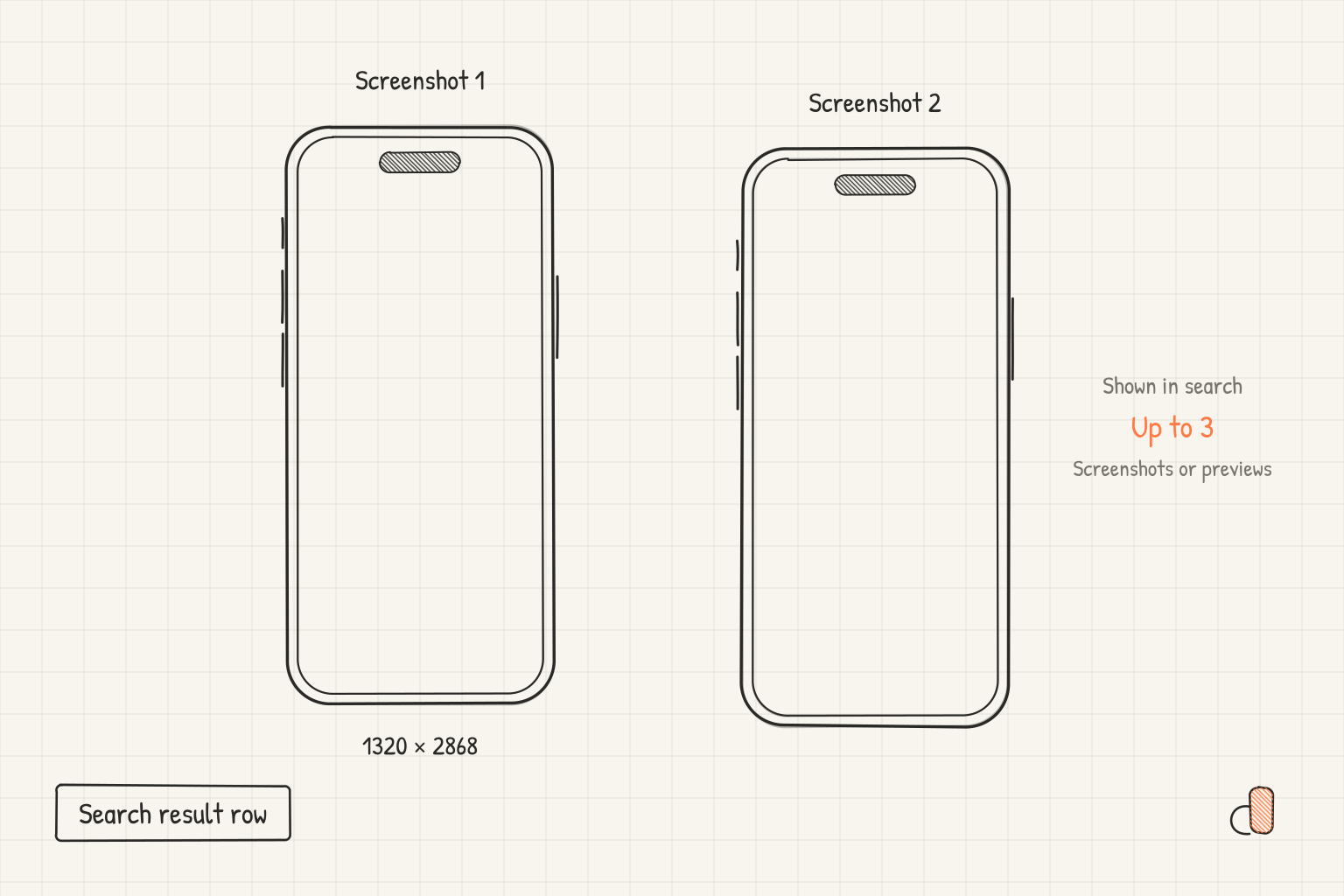
The strip beside your app in App Store search results holds one of four things. Apple's App Store search page says your rating and up to three screenshots or app previews may display there, depending on the platform and image orientation. A search result creative asset, which Apple says appears in iOS 27 and iPadOS 27 and later, takes that space when you supply one. An In-App Event card takes it for people who have downloaded your app before. With no creative asset and no preview, Apple says the first one to three screenshots appear. Design for that last case: it is the one every listing falls back to.
What can appear next to your app
Four assets compete for the same strip, and Apple describes each of them on a different page.
| Asset | Who sees it | Page that states it |
|---|---|---|
| Search result creative asset | Everyone, in iOS 27 and iPadOS 27 and later | Asset best practices |
| In-App Event card | People who have downloaded your app or game before | App Store search |
| App previews, up to three | People who have not downloaded it, when previews exist | Asset best practices |
| Screenshots, the first one to three | People who have not downloaded it, when no preview is available | Creating your product page |
Two parts of the row need no artwork from you. Your summary rating shows there, and Apple says results may include app tags, generated using large language models from your App Store Connect metadata.
The order Apple documents
Read the pages together and a priority order falls out. The creative asset sits on top. Apple's asset best practices page calls the search result asset the first thing people experience when they find your app or game through the Search tab, before they ever reach your product page, and states the fallback plainly: "If you choose to not use a search result creative asset, your In-App Events, app previews, and screenshots will appear." Creative assets appear across the App Store in iOS 27 and iPadOS 27 and later, including your product page, in search results, and when your app is featured. Our post on the product page header and creative assets covers how those are built and approved.
Then the audience splits the result. App Store search says people who have downloaded your app or game before will see your event card in search results, while people who have never downloaded it will see your screenshots or app previews instead. The In-App Events page gives the card its shape: the card image is 16:9, from 1920 × 1080 up to 3840 × 2160, and the event details page image is 9:16. An event card is not a replacement for your screenshots. It is a second visual aimed at a different group.
Video comes ahead of stills. Apple's guide to creating your product page says that depending on the orientation of your screenshots, the first one to three images will appear in search results when no app preview is available. The asset guidance puts previews at the same ceiling: up to three on your product page, and up to three may appear in search results.
The full order, then: creative asset, event card for people who already know your app, previews, and screenshots when no preview exists. Only the last of those is something every listing has, which is why the opening screenshots are worth treating as one unit.
How many appear, and the one number Apple leaves open
All three pages tie the count to orientation, and none of them publishes a figure per orientation. Treat any specific portrait or landscape count you read elsewhere as an estimate rather than an Apple rule.
You can see the real answer for your own listing instead of guessing. Apple says you can use the Preview tool in App Store Connect to visualize how your assets appear before they are live, and that the product page preview tool shows how your header, app name, description, screenshots and search result creative assets will appear to people. Open it, look at the search result row, and count what it shows. If the wrong screen is leading, reorder the screenshots so the one you want sits in slot one, then preview again.
Design the first three screens as one card
Apple's brief for the opening screenshots is short. The product page guide says the first one to three images should highlight the essence of your app, and that each subsequent screenshot should focus on a main benefit or feature. The asset guidance adds that you should lead with your best features and sequence them into a cohesive story reflective of how someone would use your app, and avoid spending a whole asset on general accolades or call to action statements.
Keep the three legible together. Apple asks you to ensure all key elements are readable, especially text, because assets can appear differently across the App Store, and to keep your focal point artwork within the centre of the composition to prevent unwanted clipping. A headline sized for a full width screenshot can be unreadable in a search row at a fraction of that width, so set your type at a size you would accept at a glance.
Keep the three clear of anything Apple bars from assets: specific pricing, discounts, website URLs, copyright symbols, claims that cannot be verified such as awards your app has not received, logos or references to other platforms, and Apple-designated recognitions such as Editor's Choice. Our post on what not to put on App Store screenshots goes through each one.
Build the first three screens free in appdesigns
appdesigns is free, runs in the browser, needs no account to create or export, adds no watermark and gives unlimited PNG exports. The feature that matters for a search row is the multi-screen project: put your opening screens in one project, where every screen uses the same kind of device, and review them side by side before export instead of one at a time.
Open the App Store screenshot generator at the 6.9 inch canvas, 1320 × 2868, which the 6.9 inch size reference lists alongside 1290 × 2796 and 1260 × 2736. Drop in your captures, set an image, gradient or colour background, add a headline to each screen, tilt the device, and pick an iPhone frame, the brand neutral Uniframe, or no frame. The gallery of shipped screenshot sets shows how other sets sequence their opening screens.
It makes no app previews. It does make In-App Event cards and search result art, as images or looping MP4 videos, and its Check flags what Apple's guidance asks to leave off them. It does not check files or upload anything to App Store Connect, so the preview pass above is still yours to run.
Frequently Asked Questions
How many screenshots appear in App Store search results?
Apple says up to three. Its App Store search page puts it as your rating and up to three screenshots or app previews, depending on the platform and image orientation, while its product page guide says the first one to three images appear when no app preview is available. The count varies with orientation, so preview your listing in App Store Connect to see what yours shows.
Do app previews replace screenshots in search results?
Apple's product page guide says the first one to three screenshots appear in search results when no app preview is available, so a preview takes that space when you have one. You can feature up to three app previews on your product page, and up to three may appear in search results. Screenshots still carry every case where no preview exists.
Why would someone see an event card instead of my screenshots?
Because they have downloaded your app before. Apple says people who have downloaded your app or game see your event card in search results, while people who never have see your screenshots or app previews instead. The card is a 16:9 image or video, from 1920 × 1080 up to 3840 × 2160, and appears only while you have a published In-App Event.
Which screenshot should go first?
The one that shows what your app is for. Apple asks that the first one to three images highlight the essence of your app, and that each subsequent screenshot focus on a main benefit or feature. Since those images are also what a searcher may see, judge slot one on whether a stranger could tell what the app does from it alone.
Does a search result creative asset stop my screenshots from showing?
In search results, yes, on the platforms where creative assets appear. Apple says that if you choose not to use a search result creative asset, your In-App Events, app previews and screenshots will appear, so the asset takes that space when you set one. Your screenshots stay on your product page either way, up to 10.