Quick Answer
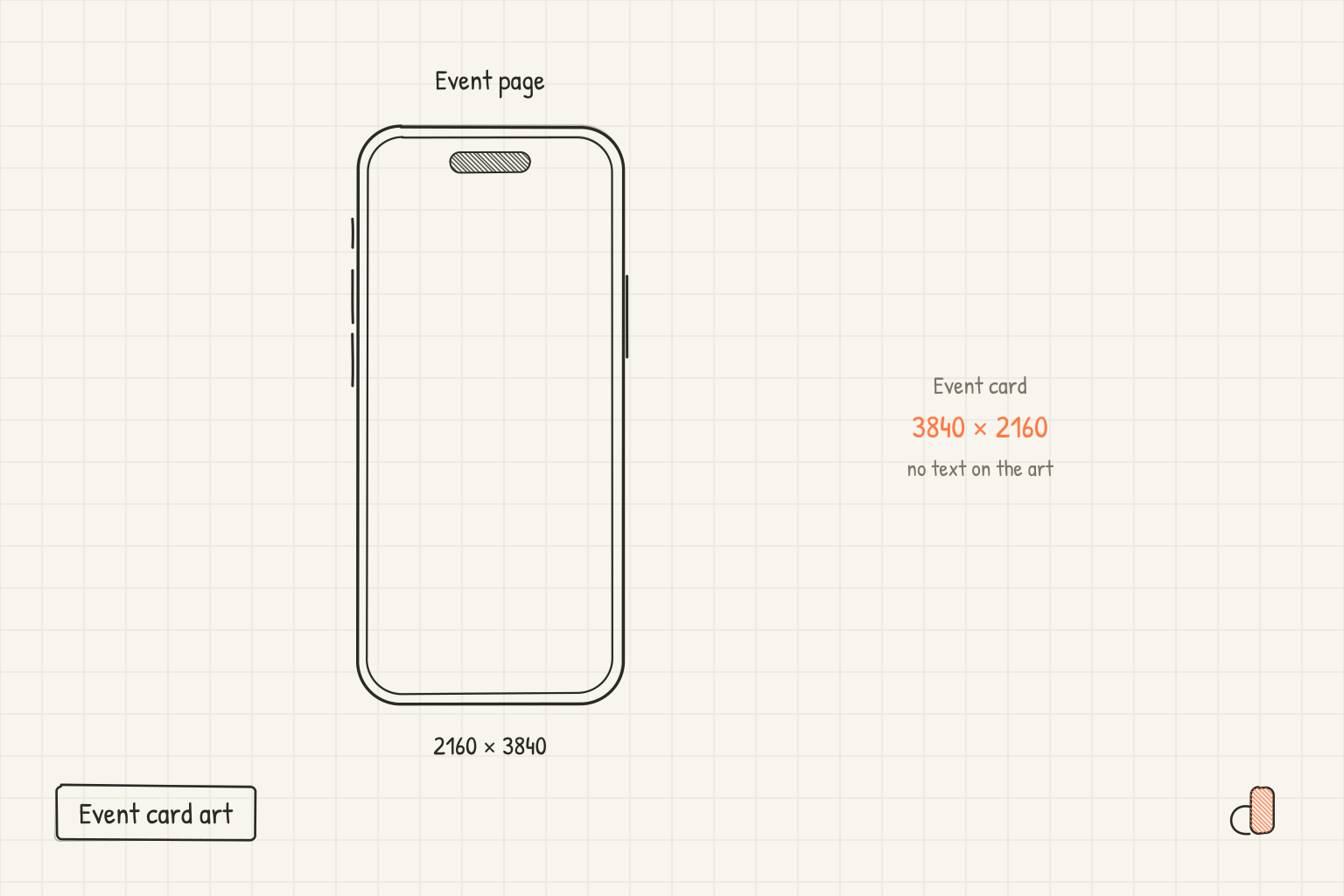
In-App Event art is two images of one idea: a 16:9 event card (up to 3840 × 2160) and a 9:16 event details page (up to 2160 × 3840). The App Store lays the badge, the event name and its own gradient over both, so keep text and logos off the art, add no borders or gradients of your own, keep the subject clear of the lower part of each image where that text lands, and give the card and the page the same colours and style. An event can be promoted up to 14 days before it starts, so a Halloween event that starts on October 31, 2026 can appear on the App Store from October 17, 2026.
What the App Store puts on top of your art
An event card is a picture the store finishes. Apple's In-App Events guidance is direct about it: "Don't add borders or gradients to your media. Crops and gradients are automatically applied to your media in order to ensure consistency across the App Store." The badge you choose in App Store Connect shows "above the title on the event card and event details page", according to the event setup help, and the event name and description come from your metadata, not from the image.
The store supplies the words, and your art supplies the picture. Three rules follow:
- No words in the image. "When possible, avoid using text or logos in your media, especially if they include your event name or app name."
- No badge of your own. The asset best practices say "Design your media to complement the badge rather than duplicate it."
- No frame and no fade. Apple adds its own gradient, so a second one painted in doubles up.
The lower part of each image is where the badge, name and gradient sit. Put one clear subject, such as a character or an object, above it, and let the bottom carry only colour and texture. appdesigns lays its theme pieces out this way: on event art it keeps them out of the card's lower 36% and the page's lower 40%. Those shares are appdesigns' own reading of where the store's text and gradient sit, not a number Apple publishes.
To check a file, use App Store Connect itself. Apple says that when you add media "you can preview what your provided media will look like in an event card and event details page to confirm that crucial aspects of your image or video will not be obscured." If the subject disappears under the name, move it up or scale it down and upload again. The full media spec sheet (formats, video rules and limits) is in In-App Event image and video sizes.
Make the card and the page one pair
Apple asks you to "create visual continuity across your event card and event details page by using similar colors or illustration styles." Someone taps the card and the page opens, so the two should feel like one place.
The card is wide, the page is tall, and the store crops each its own way, so one picture cut to both rarely works. Build the pair from shared parts:
- Pick the palette first: one background colour or image and two or three accents.
- Choose one subject and draw it once. On the card it sits in the middle third; on the page it moves to the upper half, with room below for the text.
- Repeat the supporting pieces (confetti, leaves, sparkles) in both, laid out for each shape rather than cropped.
In appdesigns the pair is one action. Signed in, an event card makes its matching 9:16 details page as a new asset in the same project, and a details page makes its card. The background is refitted to the new shape, a theme's pieces are laid out again with the same palette, and your own pieces, text and phone come along, refitted the way a size change refits them. The Store preview beside the canvas shows each one in an iPhone with the badge, the event name and a dark fade over your art, in light and dark appearance, so you can see what the store's overlay covers before you export.
The list of every iOS 27 listing asset shows where the event pair fits beside the header and search assets, and events can also appear in App Store search results.
Seasonal events: when promotion can start
Apple's rules set the calendar: "An In-App Event can last up to 31 days and be promoted up to 14 days before its start date," and the setup help adds that "Events must be at least 15 minutes long." The table counts back 14 days from each holiday, and from a start one week earlier for a week-long event that ends on the day.
| Holiday | Event starts | Earliest promotion | Week-long run ending on the day |
|---|---|---|---|
| Halloween | October 31, 2026 | October 17, 2026 | Starts October 24, promoted from October 10 |
| Thanksgiving (US) | November 26, 2026 | November 12, 2026 | Starts November 19, promoted from November 5 |
| Christmas | December 25, 2026 | December 11, 2026 | Starts December 18, promoted from December 4 |
| New Year | January 1, 2027 | December 18, 2026 | Starts December 25, promoted from December 11 |
| Valentine's Day | February 14, 2027 | January 31, 2027 | Starts February 7, promoted from January 24 |
Two things decide how early you submit. First, "In-app events must be approved before they are visible to users," and no In-App Events page gives an event-specific review time. The only figure Apple publishes is general: App Review says it is "typically reviewing at least 50% of submissions in less than 24 hours and 90% in less than 48 hours." Submit a few days before the promotion date you want.
Second, the art is fixed once the event goes out. The manage events help says that after an event is published "you can modify only the start and end dates", and after it begins, the end date only. Finish and check both images before you publish.
Make seasonal event art free in appdesigns
appdesigns has both event canvases as presets: the In-App Event card at 3840 × 2160 and the In-App Event page at 2160 × 3840, Apple's largest accepted sizes, both in the project title's catalog and the size picker. It is free, needs no account to create or export, adds no watermark, has no export limit and renders in your browser. Exports are PNG files, and an opaque background exports with no alpha channel. Start from the App Store screenshot generator and switch the canvas to the event card.
The Style panel under the Store preview lays a seasonal theme on the open canvas in one undo step: Halloween, Winter holidays, New Year, Valentine's, Summer, Launch, Competition or Now on iPhone Duo, with Shuffle for another arrangement of the same theme. On event art the theme builds around one centrepiece above the band where the store's text sits.
One caveat: the themes lay a gradient fill under their pieces, and Apple asks for no gradients of your own on event media. Before you export, switch the background to a solid colour or an image in the Background panel; the pieces stay put.
The Check panel then reads the event. On event art it flags any text on the canvas. In the event's details it flags a name that is not in title case, all capitals, runs of punctuation, prices, a call to action used as the name, and anything longer than App Store Connect takes. It does not check gradients, file sizes or formats, so the preview in App Store Connect stays your last step. appdesigns makes no video, so a looping event video has to come from a video editor.
Frequently Asked Questions
Can In-App Event art include my app name or logo?
Apple asks you to avoid text and logos in event media when possible, especially the event name or the app name. The store already shows the event name over your art, so carry your brand through colours, characters and illustration style instead.
Can the event card and details page use the same picture?
They can share a subject and a palette, but each needs its own layout. The card is 16:9 and the page is 9:16, and the store crops and overlays each differently, so one composition cut to both usually loses the subject on one of them. Lay the shared pieces out again for each shape.
How early should I submit a Halloween event?
An event that starts on October 31, 2026 can be promoted from October 17, 2026, and a week-long event that starts on October 24 can be promoted from October 10. Apple gives no event-specific review time, and general App Review handles 90% of submissions in under 48 hours. Submit a few days before the promotion date you want.
Can I change the artwork after the event is published?
No. Once an event is published, App Store Connect lets you change only its start and end dates, and after it begins, only the end date. Check both images in App Store Connect's event preview before you publish.
Does appdesigns make In-App Event videos?
No. appdesigns makes still images only, exported as PNG at the event card and details page sizes. A video for the card or page has to come from a video editor, and Apple asks for a seamless loop because event videos autoplay and repeat.