Quick Answer
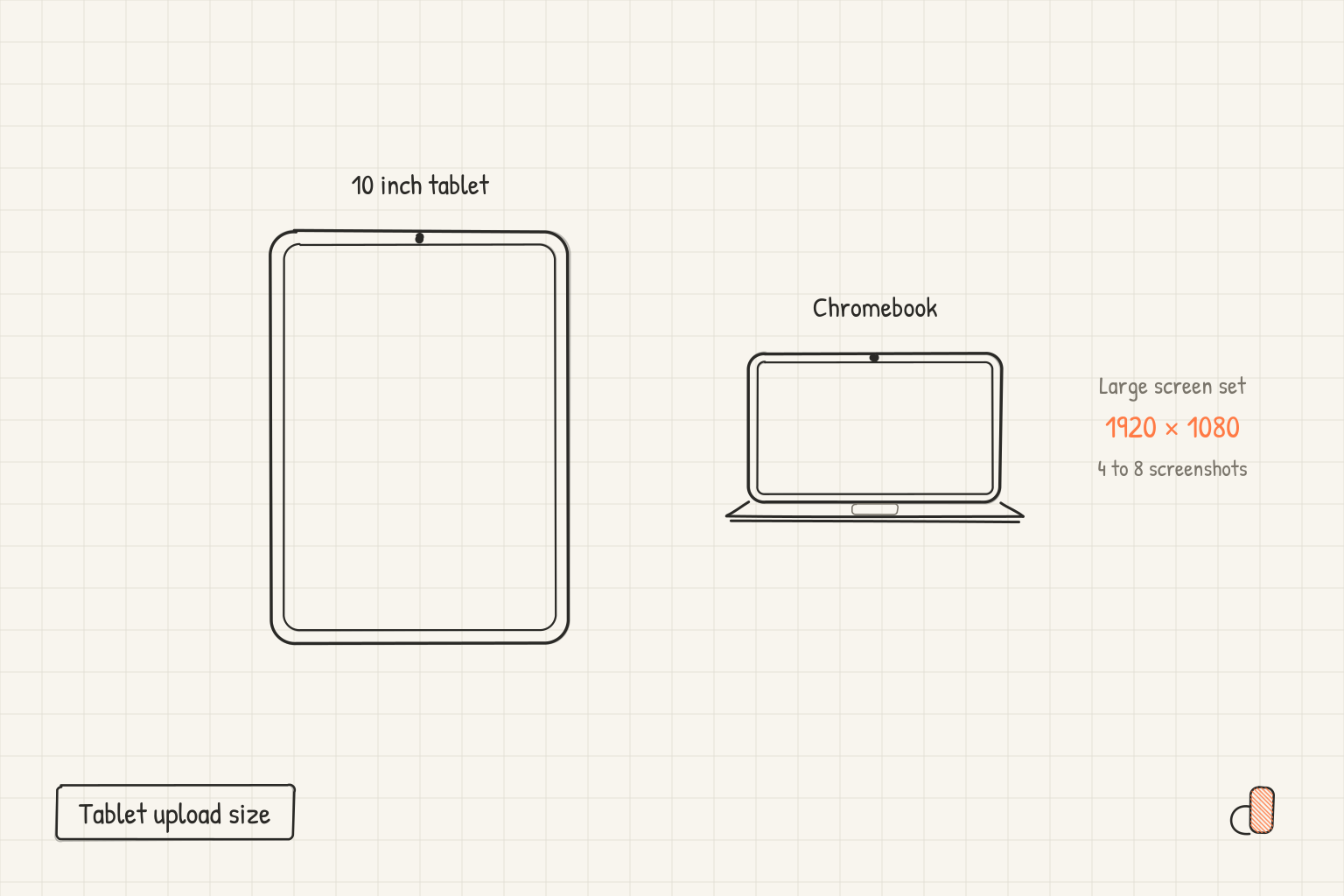
Google Play takes up to 8 screenshots for each supported device type, and those types include tablets (7-inch and 10-inch) and Chromebooks. For those large screen sections Google asks for a minimum of 4 screenshots, between 1,080 and 7,680px, using a 16:9 aspect ratio for landscape and a 9:16 aspect ratio for portrait. The mandatory requirements on the same page are looser and cover every screenshot: JPEG or 24-bit PNG with no alpha, no side under 320 px or over 3840 px, and a long side no more than twice the short. Export 1920 × 1080 for a landscape tablet or Chromebook set, or 1080 × 1920 for a portrait one, and every list is satisfied.
What Google requires and what it only recommends
The tablet and Chromebook guidance is split across three blocks of one page, and only one decides whether your listing can publish. Google's preview asset page keeps the mandatory rules under Requirements, the per device upload notes under Screenshots, and the rest under Highly recommended.
| Rule | Block | Weight |
|---|---|---|
| Two screenshots across different device types, JPEG or 24-bit PNG with no alpha, 320 px to 3840 px per side, long side at most twice the short | Requirements | Mandatory |
| Up to 8 screenshots per supported device type | Screenshots | Upload limit |
| Chromebook and tablets: minimum 4 screenshots, 1,080 to 7,680px, 16:9 or 9:16 | Large screens | Guidance |
| Exclude text that is not part of your core app experience | Large screens | Guidance |
| Four screenshots at 1080 px or more, from 1920 × 1080 or 1080 × 1920 | Highly recommended | Large format placements |
| Avoid device imagery and store badges | Highly recommended | Large format placements |
| Alt text, 140 characters or less | Highly recommended | Large format placements |
Requirements is the gate: you must provide a minimum of two screenshots across different device types to publish, and both can be phone screenshots. Nothing in the large screens notes blocks a release. Treat Highly recommended as firm anyway, because Google says that to be eligible for the Play sections showing recommended apps in a large format, those guidelines "are a requirement".
The size to export for tablets and Chromebooks
Use 1920 × 1080 landscape as the primary tablet and Chromebook set, and 1080 × 1920 if your app is portrait only. Two reasons from Google's pages: those are the exact minimums the Highly recommended list gives for the two ratios the large screens notes name, and the adaptive app quality guidelines ask you to upload screenshots that show off the app on tablets and foldables, which a landscape capture of a two pane layout does and a portrait phone capture does not.
One contradiction sits inside the page: the large screens notes say to upload screenshots between 1,080 and 7,680px, while Requirements caps the maximum dimension at 3840px. Stay at or below 3840 px, the mandatory number.
To check a file, read its pixel dimensions in your file browser's info panel and divide the long side by the short. A 16:9 or 9:16 file gives 1.78, inside Google's cap of 2. Confirm neither side is above 3840 or below 320, and that the file is a JPEG or a 24-bit PNG. If the ratio is wrong, rebuild on a 1920 × 1080 canvas rather than scaling a 4:3 capture, which crops your interface or leaves bars. If the file carries an alpha channel, flatten it or save it as a JPEG.
A raw capture off a 20:9 Android phone has a long side more than twice its short side and is not a valid Play upload, which is why the Google Play and Android sizes page points at 1080 × 1920.
Can you reuse iPad screenshots on Google Play
Partly. Apple's screenshot specifications list 2064 × 2752 and 2048 × 2732 for the 13-inch iPad class and four sizes for the 11-inch class. Every one clears Google's envelope, and none is 9:16.
| Screenshot size | Short side divided by long side | Clears Play's limits | Is 9:16 |
|---|---|---|---|
| 2064 × 2752 | 0.75 | Yes | No |
| 2048 × 2732 | 0.75 | Yes | No |
| 1668 × 2388 | 0.70 | Yes | No |
| 1668 × 2420 | 0.69 | Yes | No |
| 1640 × 2360 | 0.69 | Yes | No |
| 1488 × 2266 | 0.66 | Yes | No |
| 1080 × 1920 | 0.56 | Yes | Yes |
An iPad file will upload. It just lands outside the ratio Google ties recommendation eligibility to, and the Highly recommended list says screenshots must demonstrate the actual in-app experience, which an iPadOS capture does not do for an Android listing. Keep the iPad set for the App Store and build a separate 16:9 set for Play. The iPad screenshot sizes page covers the Apple side.
Frames, text and the rule that does not apply to tablets
Upload tablet and Chromebook screenshots unframed. Google's Highly recommended list tells you to avoid inappropriate or repetitive image elements, and names device imagery, because it can become obsolete quickly or alienate some users, alongside any store's badge or icon. That bullet sits on the general list, so it covers large screens too.
What it is not is a ban. The flat instruction not to position screenshots within device frames, or include additional text, graphics or backgrounds, appears only in Google's Wear OS and watch face lists, so do not quote it at a tablet upload. The post on device frames in Google Play screenshots has the full picture.
Headline text needs more care here than on a phone upload. The large screens notes tell you to exclude additional text that is not part of your core app experience, because it can get cut off on Play homepages on certain screen sizes. In its I/O 2026 post, dated 19 May 2026, Google said it is broadening reach across Android tablet surfaces, including home screen Collections. A caption that survives a crop from any edge is the safe version.
Build the tablet set free in appdesigns
appdesigns is free, runs in the browser, needs no account to create or export, adds no watermark and places no cap on exports. Exports are PNG files.
Start from the Android 1080 × 1920 preset in the Google Play screenshot generator and switch to its 1920 × 1080 landscape version for the tablet and Chromebook sections. Both sit inside the 320 px to 3840 px envelope and both hit the ratios the large screens notes name. Add an image, gradient or colour background and a headline, and keep every screen in a project on the same kind of device.
Choose no frame for the files you upload, in line with the device imagery bullet. The Pixel 11 Pro and Galaxy S26 Ultra frames, and the brand neutral Uniframe on phone canvases, are for your website, ads and press kit. Two limits: appdesigns does not check files against store rules or upload to Play Console, and its PNG exports can carry an alpha channel even when the background is opaque, so flatten or convert to JPEG if Play refuses a file for alpha.
Frequently Asked Questions
How many screenshots can you upload for a tablet on Google Play?
Up to 8 for each supported device type, and tablets at 7-inch and 10-inch are separate types from phones. Google asks for a minimum of 4 for Chromebook and tablets. The listing itself only needs two screenshots across different device types to publish.
What size should a Chromebook screenshot be?
Export 1920 × 1080 for landscape or 1080 × 1920 for portrait. Google's large screens notes ask for 16:9 or 9:16 at between 1,080 and 7,680px, and the Highly recommended list names those dimensions as the minimums. Keep every side at 3840 px or below.
Do 7-inch and 10-inch tablets need different screenshots?
They are separate device types, each with its own section in the Console and its own allowance of 8 slots. Google gives no separate pixel size for the two classes, and the same large screens notes cover both, so one set can fill both.
Does Play reject a tablet screenshot for the wrong aspect ratio?
No. The mandatory rule is only that the long side is no more than twice the short side, so 16:9, 4:3 and 1:1 files all pass. Missing 9:16 or 16:9 costs eligibility for large format placements, not the release.
Is alt text required for tablet screenshots?
It sits on the Highly recommended list, not the Requirements, so no. Google asks for 140 characters or less per screenshot, and advises against opening with "photo of" or "image of" because screen readers already say that.