Quick Answer
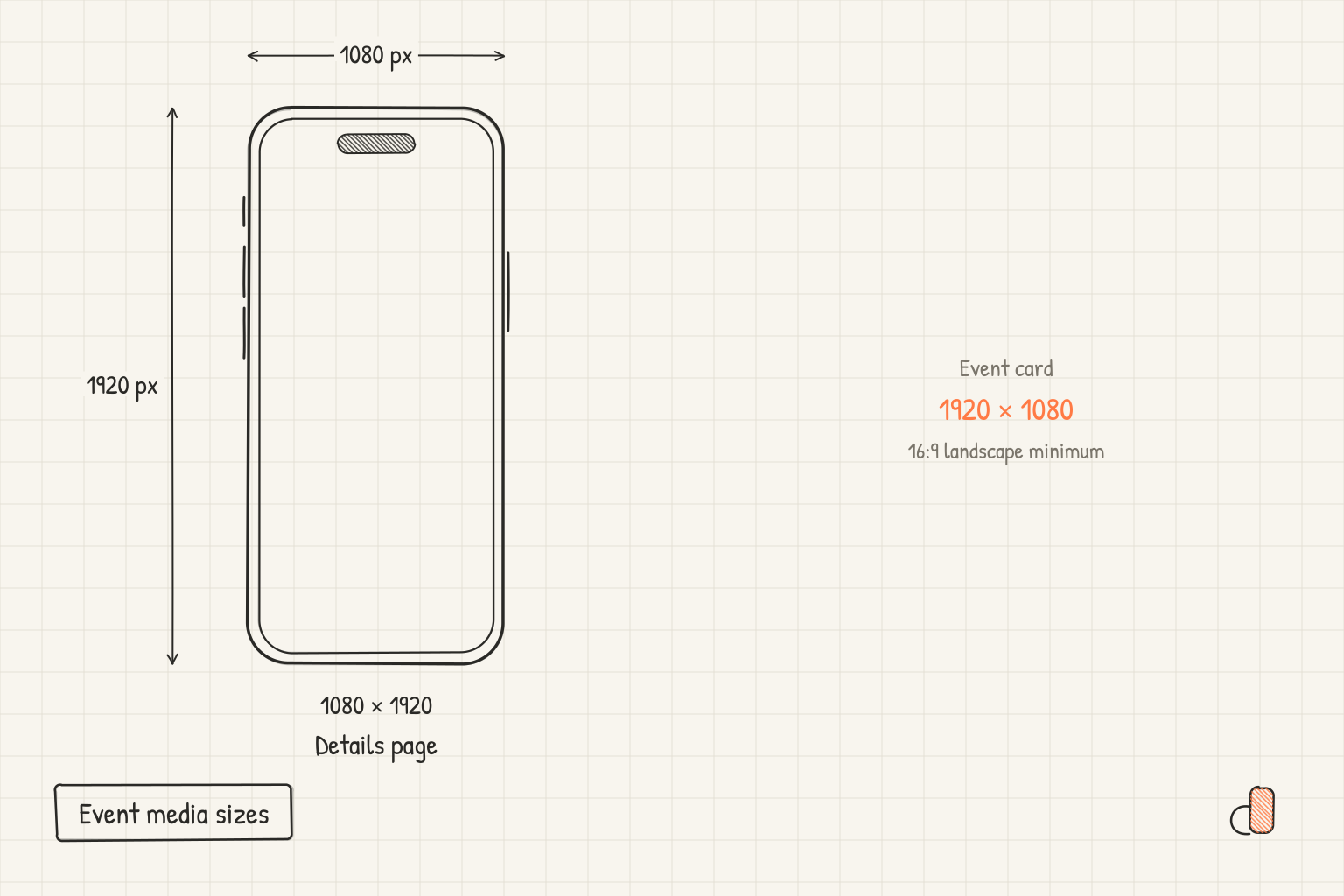
An In-App Event needs two pieces of media, sized differently. The event card is landscape at 16:9, accepted from 1920 × 1080 up to 3840 × 2160. The event details page is portrait at 9:16, accepted from 1080 × 1920 up to 2160 × 3840. Each slot takes either a still image in .jpg, .jpeg or .png, or a video in .mov, .m4v or .mp4 at 30 or 60 fps, and all four entries carry a 500MB maximum file size. The minimums are floors, not suggestions: a 1280 × 720 card image is below the accepted range.
The four media entries and their limits
Apple puts all of them in one table on the In-App Event media and audio specifications page.
| Media type | Extensions | Aspect ratio | Resolution range | Max file size |
|---|---|---|---|---|
| Event card image | .jpg, .jpeg, .png | 16:9 | 1920 × 1080 to 3840 × 2160 | 500MB |
| Event card video | .mov, .m4v, .mp4 | 16:9 | 1920 × 1080 to 3840 × 2160 | 500MB |
| Event details page image | .jpg, .jpeg, .png | 9:16 | 1080 × 1920 to 2160 × 3840 | 500MB |
| Event details page video | .mov, .m4v, .mp4 | 9:16 | 1080 × 1920 to 2160 × 3840 | 500MB |
The page adds one note above the table: "Event Card media should appear in landscape orientation and Event Detail media should appear in portrait orientation." 1920 ÷ 1080 reduces to 16 ÷ 9 exactly, 1080 × 1920 is the same rectangle turned on its side, and each maximum is exactly twice its minimum on both edges. You are designing two shapes, not four, and any size between the two ends is fine as long as it holds the ratio.
Export at the maximum when your artwork can carry it. A 3840 × 2160 card is four times the pixel area of 1920 × 1080, and Apple's In-App Events page says crops and gradients are automatically applied to your media, so the master with more pixels survives that crop with more detail intact. A still at that size lands nowhere near the 500MB cap. If your source art is a screen recording or a fixed-resolution render, the floor sizes are accepted as they stand.
Video frame rate, looping and audio
Both video entries accept 30 fps or 60 fps and nothing in between. Apple's In-App Events page gives the behaviour that should shape the edit: "Videos autoplay and repeat, so aim to create a seamless loop." Cut the last frame to match the first, or the card visibly jumps every few seconds on your product page.
Audio is specified separately for each slot, and the two lists are not identical.
| Setting | Event card video | Event details page video |
|---|---|---|
| Codec | 256kbps AAC | PCM or 256kbps AAC |
| Bit depth | Not applicable | 16-, 24-, or 32-bit for PCM |
| Sample rate | 44.1kHz or 48kHz | 44.1 or 48kHz |
| Silent track | Supported | Supported |
Both are stereo, configured the same way: one track with 2-channel stereo, first channel left and second right, or two tracks with 1-channel stereo, first track left and second right. Since tracks without audio are supported, a silent loop is a valid submission.
What Apple asks you to keep off the media
Four instructions on the In-App Events page and the asset best practices page shape the artwork itself.
Leave text and logos out. Apple asks you to avoid using text or logos in your media, especially if they include your event name or app name. The name already sits beside the media as its own field, so a headline baked into the image duplicates it and risks being cropped.
Leave borders and gradients out. Apple states the reason plainly: crops and gradients are automatically applied to your media in order to ensure consistency across the App Store. A border you draw gets cut, and a gradient you bake in stacks on top of Apple's.
Match the two assets. The asset best practices page asks you to design for both aspect ratios, use similar colours or illustration styles so the card and the details page read as one thing, and complement your event badge rather than duplicate it.
Keep prices out. The In-App Events page says including specific pricing will lead to rejection by App Review, because pricing and currencies vary by region and can change independently of the event. The same thinking keeps prices off App Store screenshots.
To check a file, open it in Preview on a Mac and choose Tools then Adjust Size: the Width and Height fields show the exact pixel dimensions, which have to reduce to 16:9 or 9:16. To fix an off-ratio file, use the Markup crop tool with Tools then Show Inspector, which puts a Crop Inspector window on screen showing the live dimensions of your selection. App Store Connect also previews your media as a card and as a details page, so you can confirm nothing important sits where a crop lands.
The text and badge around your media
Three text fields ship with the media, each with a case convention and a length cap.
| Field | Limit and case | Where it shows |
|---|---|---|
| Event name | 30 characters, title case | Event card and details page |
| Short description | 50 characters, sentence case | Event card |
| Long description | 120 characters, sentence case | Event details page |
Above the title sits a badge you choose from seven: Challenge, Competition, Live Event, Major Update, New Season, Premiere and Special Event. Apple's App Store What's New page adds three for the Apple Games app, In-Game Offer, Now On Sale and Try Before You Buy, which unlock only if its editorial team picks up an offer you propose through Featuring Nominations, and which it describes as available in the United States with more regions to follow.
Scheduling decides when the media is due. An app holds up to 15 approved events and publishes up to 10 at a time, events go to review independently of a new app version, an event runs at least 15 minutes and at most 31 days from its start date, and the publish date can sit up to 14 days ahead of the start. The card then competes for the strip beside your app in search, which our post on what shows in App Store search results breaks down.
Making both canvases free in appdesigns
appdesigns has both minimum sizes as canvas presets: the 1080 × 1920 Android preset is the event details page floor exactly, and its landscape version, 1920 × 1080, is the event card floor. Pick one, choose no frame, set an image, gradient or colour background, and export. It is free, needs no account to create or export, adds no watermark, allows unlimited exports, renders in the browser, and exports PNG files, which .png covers for both image slots.
Two things differ from a screenshot here. Skip the headline text, because Apple asks you to keep text and logos out of event media. And build the card and the details page as separate projects rather than resizing one into the other, since 16:9 and 9:16 crop to different parts of an image. The editor makes no video, so a looping card has to come from your own video tool, and it does not check files against store rules or upload to App Store Connect, so run the Preview check above first. The App Store screenshot generator is the same editor if the screenshot set is on your list too.
Frequently Asked Questions
What is the minimum size for an App Store In-App Event card?
1920 × 1080 pixels, at a 16:9 aspect ratio, for images and video alike. Apple accepts anything from there up to 3840 × 2160. Anything smaller sits outside the published range.
Can one image serve both the event card and the event details page?
No. The card is 16:9 landscape and the details page is 9:16 portrait, so one file cannot satisfy both. Design them separately and keep them related through colour and illustration style, as Apple's asset best practices page asks.
Does an In-App Event have to include video?
No. Each slot takes either an image or a video, and Apple only suggests considering video for a more dynamic preview. If you do use video, it must be 30 or 60 fps and should loop seamlessly, because event videos autoplay and repeat.
Do I need a new app version to publish an event?
No. Apple says you can submit events for review independent of a new app version, so an event goes out on its own schedule. It still has to be approved before anyone sees it.