Quick Answer
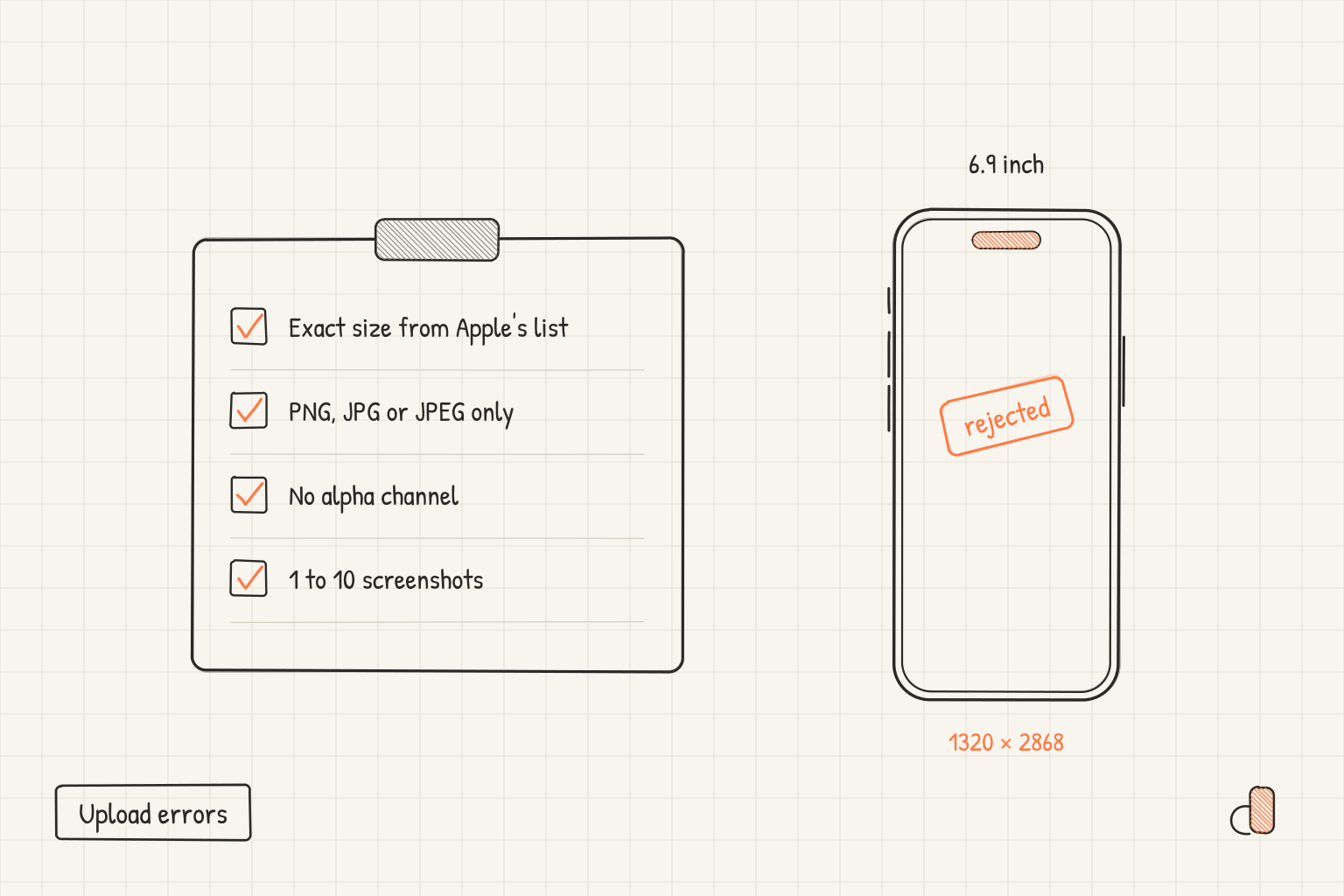
App Store Connect checks every screenshot against a short list of rules, which Apple's specifications page states in a sentence and a note: you can upload one to 10 screenshots in .jpeg, .jpg, and .png formats, and "Images can't include alpha channels or transparencies." Each file also has to match an exact pixel size for its device class, with nothing in between accepted. A portrait screenshot for the 6.9 inch iPhone class is 1320 × 2868, 1290 × 2796 or 1260 × 2736, and nothing else. Two rejection messages get reported repeatedly: one about dimensions, which names the size it wanted, and one about format, which names nothing.
The dimensions of one or more screenshots are wrong
Apple's screenshot specifications page gives every device class a fixed set of accepted sizes, and your file has to be one of them. Developers report that App Store Connect names the size it expected: in a July 2024 forum thread the message reads "The dimensions of one or more screenshots are wrong. Learn More. Screenshots dimensions should be: 1242 x 2208px or 2208 x 1242px", and the developer traced it to a simulator that had captured at 1125 × 2436, a size belonging to a different class.
Here is the full list of portrait sizes Apple accepts. The page lists landscape separately, as the same pair of numbers reversed.
| Device class | Accepted portrait sizes |
|---|---|
| iPhone 6.9 inch | 1320 × 2868, 1290 × 2796, 1260 × 2736 |
| iPhone 6.5 inch | 1284 × 2778, 1242 × 2688 |
| iPhone 6.3 inch | 1206 × 2622, 1179 × 2556 |
| iPhone 6.1 inch | 1170 × 2532, 1125 × 2436, 1080 × 2340 |
| iPhone 5.5 inch | 1242 × 2208 |
| iPhone 4.7 inch | 750 × 1334 |
| iPhone Duo | 2007 × 2853 inner, 1398 × 2034 outer |
| iPad 13 inch | 2064 × 2752, 2048 × 2732 |
| iPad 11 inch | 1488 × 2266, 1668 × 2420, 1668 × 2388, 1640 × 2360 |
| Mac | 2880 × 1800, 2560 × 1600, 1440 × 900, 1280 × 800 |
| Apple TV | 3840 × 2160, 1920 × 1080 |
| Apple Vision Pro | 3840 × 2160 |
| Apple Watch | 422 × 514, 416 × 496, 410 × 502, 396 × 484, 368 × 448, 312 × 390 |
To check a file, read its pixel dimensions in the tool that exported it and look for that exact pair in the table. To fix it, export again from the source at a listed size instead of scaling the file you already have. Apple's page marks the 6.5 inch row "Required if app runs on iPhone and screenshots for 6.9" display aren't provided", and the 13 inch iPad row "Required if app runs on iPad". Everything else is optional, because a class with no set of its own is filled with scaled versions of a larger class, so the 6.9 inch iPhone canvas is the one to build first.
One or more screenshots are in the wrong format
Apple states which formats it takes and stops there. An editorial update in the App Store Connect release notes dated September 3, 2025 says "Screenshots must be provided in .jpeg, .jpg, and .png formats." Apple does not document this error message or what sets it off, so everything in this section is what developers report, not a rule.
The thread on the message was opened in October 2020 and still has replies in 2026, with no answer from Apple in it. The fixes people post go in both directions: "It worked for me after converting PNG images to JPEG images" in November 2020, and "Converting all screenshots from .jpeg to .png fixed my issue" in April 2024. Another reply says "Changing the file extension didn't help but what resizing the screenshots to 1290x2796px with 144 pixels/inch did."
What those reports have in common is that the file got written out again by a different encoder. Renaming screenshot.png to screenshot.jpg does not do that: the bytes inside the file are unchanged and only the name moved. Open the image in an editor and export it as a new file, in either accepted format, before trying anything more elaborate.
Images can't include alpha channels or transparencies
This one is a documented rule with a date on it. The release notes record an editorial update on July 8, 2026: "Screenshots can't include alpha channels or transparencies." The same note now sits at the top of the specifications page.
An alpha channel is a fourth channel, stored alongside red, green and blue, that holds how opaque each pixel is. PNG can carry one whether or not any pixel is actually see through, so a PNG that looks completely solid can still be an RGBA file. JPEG has no alpha channel at all, so it cannot break this rule.
To check a file, open it in the tool that made it and look at whether a background layer covers the whole frame, and whether a transparent background option is switched on in the export dialog. The fix is one of two: put an opaque background under the full canvas and export the PNG again, or export the same artwork as a .jpg file, which Apple accepts and which has nowhere to put an alpha channel.
What else stops the upload
Some failures are not about the file at all. Apple's upload help page lists the app statuses that allow screenshot uploads: Prepare for Submission, Invalid Binary, Rejected, Metadata Rejected and Developer Rejected. It also lists the roles that can do it: Account Holder, Admin, App Manager or Marketing. Once a version is approved, that page says you have to create a new version to change its screenshots.
Watch and iMessage sets do not appear in the main well: the page says to click View All Sizes in Media Manager to upload them, and that is also where you add custom sets for other device sizes and localizations. The Apple Watch sizes page lays out the six watch dimensions. The specifications page also notes, under the iPhone Duo entry, that support for uploading assets for that device in App Store Connect "will be available later this year".
Exporting at an accepted size for free
Two of these errors come down to producing a file at an exact size, which is what appdesigns does. It runs in the browser, it is free, it needs no account to create or export, there is no watermark and there is no export limit. The App Store screenshot generator has canvas presets at 1320 × 2868, 1206 × 2622, 1170 × 2532, 2048 × 2732, 2880 × 1800 and 422 × 514 among others, plus a landscape version of each phone and iPad preset. You can add device frames for current iPhone, iPad, MacBook and Apple Watch models, use Uniframe, a brand neutral frame for phone canvases, or use no frame.
Two things it does not do. It does not check files against store rules and it does not upload to App Store Connect, so the rules above still need your eye. Its exports are PNG files, and a PNG export can carry an alpha channel, so if you have hit the alpha rule, flatten the file or convert it to .jpg in an image editor first.
Frequently Asked Questions
How many screenshots can I upload for one device size?
One to 10. Apple's upload help page words it as a minimum of one and a maximum of ten, in .jpeg, .jpg and .png formats. The allowance applies per device size and per localization.
Does renaming a PNG to .jpg fix the wrong format error?
No. Changing the extension leaves the file contents untouched, so whatever the uploader objected to is still there. Developers who got past the error describe exporting the image again from a design tool, which writes a genuinely new file. Apple accepts both formats, so either target works.
Can a screenshot have a transparent background?
No. Apple's specifications page says images can't include alpha channels or transparencies, and the release notes date that line to July 8, 2026. Export on an opaque background, or export as JPEG, which has no alpha channel to begin with.
Do I have to upload a separate set for every iPhone size?
No. Apple's page marks the 6.5 inch row as required only when no 6.9 inch screenshots are provided, and says that a class without its own screenshots is shown scaled versions from a larger class. A single 6.9 inch set therefore covers the iPhone listing.
Can I change my screenshots after the app is approved?
Not on the approved version. The upload help page says that once your app is submitted for review and approved, you must create a new version to update the screenshots. Before that point the version has to be in a status that accepts uploads, such as Prepare for Submission.